Step 2: Download template files
After selecting your dataset type in Step 1, the app generates a set of CSV template files tailored to your selection.
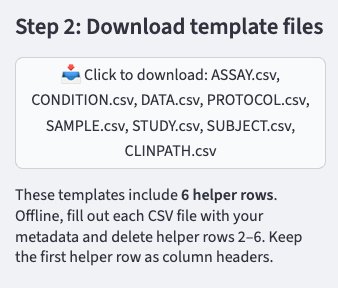
What to download
Click the download button in the sidebar to get a zip file containing one CSV per expected table (e.g. ASSAY.csv, SAMPLE.csv, STUDY.csv, etc.). The exact files depend on your Step 1 selections.
What's inside each template
Each CSV includes 6 helper rows at the top. For example:
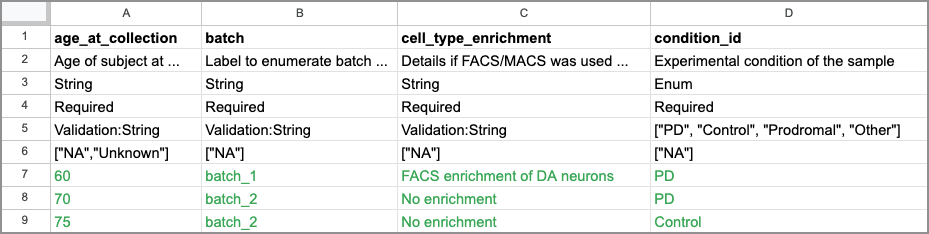
Where rows represent:
| Row | Content |
|---|---|
| 1 | Column headers |
| 2 | Column descriptions |
| 3 | Data types (Integer, Float, String, or Enum) |
| 4 | Required status (Required or Optional) |
| 5 | Validation rules (valid values for Enum columns) |
| 6 | Valid missing values |
| 7 to 9 | Example values |
How to fill out the templates
- Open each template CSV in your preferred tool (Excel, Google Sheets, R, Python, etc.)
- Fill in row 7 onwards with your actual metadata
- When done, delete rows 2–6 — keep only the column headers (row 1) and your data
Tip
- You don't need to reorder column headers. The app matches columns by name.
- Filling out templates programmatically (e.g. with a script) reduces the risk of typos and avoids issues with Excel reformatting date-like strings.
Once your files are filled out, proceed to Step 3.