Step 5: CDE validation
This is the main validation step. The app compares each table against the ASAP CRN controlled vocabularies (CDE) and reports any issues.
Running the comparison
Click the Compare vs. CDE button for the table you want to validate.
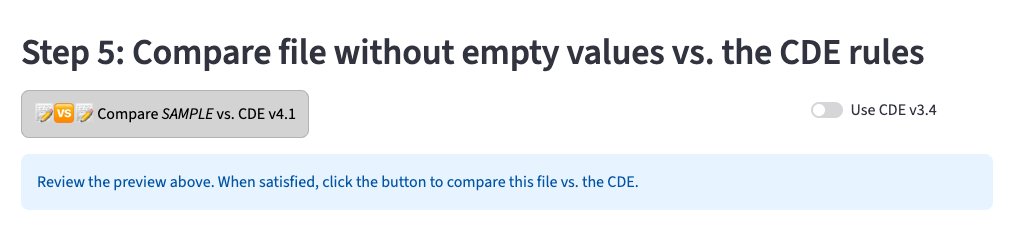
The app will validate your table against the current CDE version. A progress indicator will appear while validation runs.
Reading the validation report
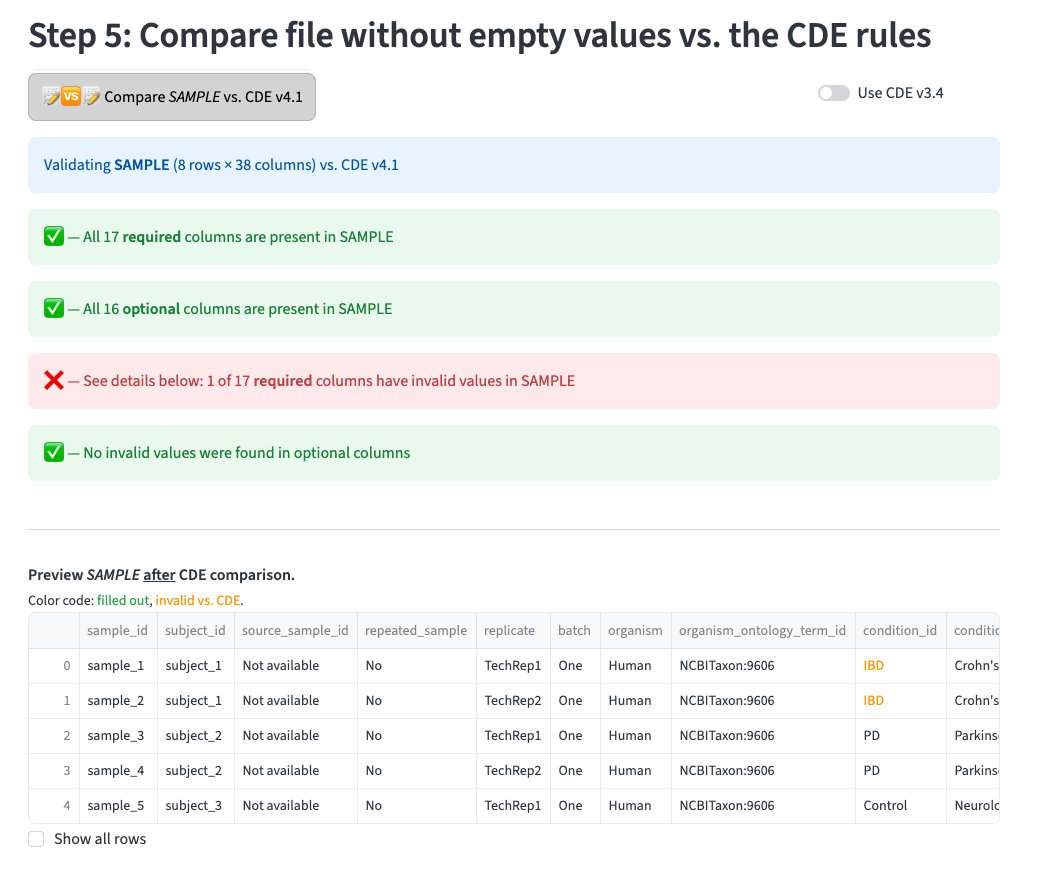
The report shows four summary lines:
- ✅ All required columns are present
- ✅ All optional columns are present
- ❌ Required columns with invalid values (must fix)
- ✅ No invalid values in optional columns
Below the summary, a color-coded preview of your table highlights invalid values in orange — these are cells where the value does not match the CDE controlled vocabulary.
Errors (❌)
Must be fixed before uploading to ASAP CRN Google buckets. The download button for the sanitized CSV will remain disabled until all errors are resolved.
Warnings (⚠️)
Recommended to fix but not required. You may proceed with warnings if you have a valid reason — use the comment boxes to explain to ASAP curators.
Downloading your results

Once validation is complete, three files are available to download:
| File | Purpose |
|---|---|
TABLE.md |
Full QC log for your records |
TABLE_comments.md |
Your column-level comments for ASAP curators |
TABLE.cde_compared.csv |
Sanitized CSV ready to upload (only enabled if no errors) |
Tip
Provide the TABLE_comments.md file to your ASAP data curator along with your final CSV upload — it gives context for any warnings or missing values.
After validation
Upload your final files to the Google bucket by following these instructions, then notify your data manager.
Note
If you have multiple tables to validate, use the "Go back to select a table" button to repeat Steps 4–5 for each one before uploading.