Step 3: Upload your completed files
Once your CSV files are filled out and helper rows 2–6 are removed, upload them to the app.
How to upload
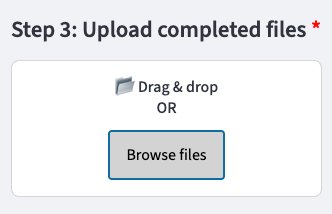
Drag and drop your CSV files onto the upload box, or click Browse files to select them from your computer. You can upload multiple files at once.
Each uploaded file becomes a TABLE in the app that can be checked and validated independently.
Note
You can upload files from multiple CSV templates in one go — the app will handle each one separately.
Once uploaded, the app will automatically move to Step 4 to check for common issues.