Apps
Apps are cloud-based environments in Verily Workbench that let you run code, explore data, and manage analysis workflows. Each workspace can host multiple apps, such as JupyterLab, RStudio, or Visual Studio Code, connected to your data and GitHub repositories.
Launching an App
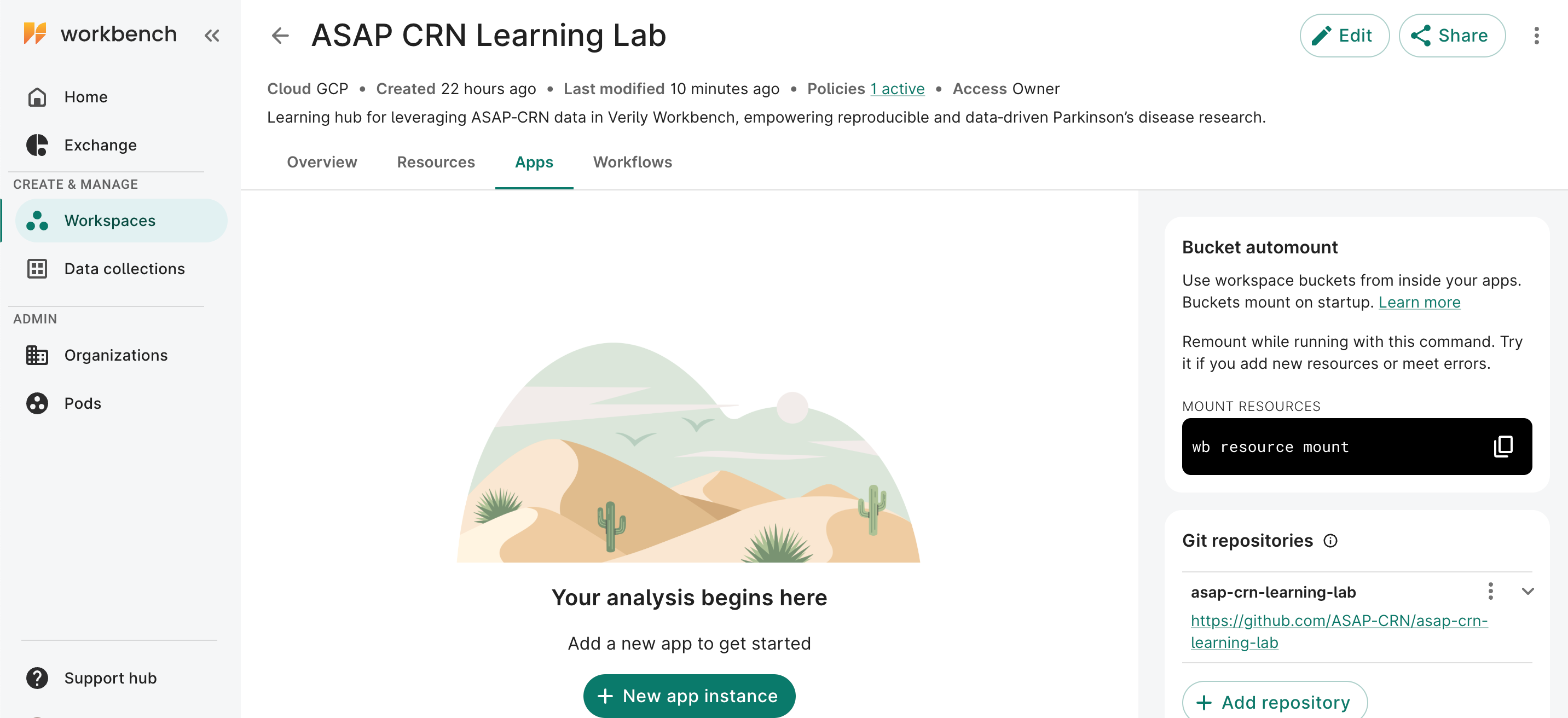
- Open your workspace.
- In the top navigation bar, click the Apps tab.
-
Select + New app instance.
-
In the setup dialog:
- Name: choose a clear name (e.g.,
learning-lab-pythonorlearning-lab-rstudio). - App type: select your preferred environment:
- JupyterLab — recommended for Python-based analysis and tutorials. Can also support RStudio.
- RStudio — for R and statistical workflows.
- Machine type: choose a standard configuration such as
n1-standard-4, unless your workflow requires more memory, CPUs, or GPUs.
- Name: choose a clear name (e.g.,
- Click Create App to launch.
The app may take a few minutes to initialize. Once it is ready, it will appear under the Apps tab with a running status.
Opening and Using Your App
Once your app is running:
- Click your app name to launch the environment.
- In JupyterLab, navigate to
$HOME/repos/asap-crn-learning-lab/to open any Learning Lab notebooks. You will also see any other connected repos in the$HOME/repos/folder. - Access workspace-mounted data from the
$HOME/workspace/directory, which mirrors the contents of the Resources tab.
Managing Your App
You can stop or delete apps from the Apps tab to manage costs or clean up environments.
- Stop App — Stops the running compute environment while keeping the app and disk available for later use.
- Delete App — Permanently removes the app. Make sure any important notebooks, scripts, or outputs are saved to GitHub, workspace storage, or another persistent location before deleting.
Billing reminder
Always stop your app when you are finished working to avoid unnecessary compute costs. Some storage or persistent disk costs may still apply while the app is stopped.
For additional details, see the Verily Workbench Quickstart Guide — Create an App.
Next Steps
After duplicating the workspace and launching an app, you're ready to start running Learning Lab notebooks.
Start with:
- Python and R Sample Notebooks
- Pilot Workshop Series
- Substantia Nigra Cell-Type Annotation Case Study
Use the sample notebooks for orientation, the workshop series for guided practice, and the case study for an applied research workflow.