Resources
The Resources tab in Verily Workbench lets you view, organize, and access data and documentation linked to your workspace. Resources may include curated datasets, metadata files, documentation, notebooks, and links to Google Cloud Storage (GCS) locations (ws_files) that can be used in downstram analysis.
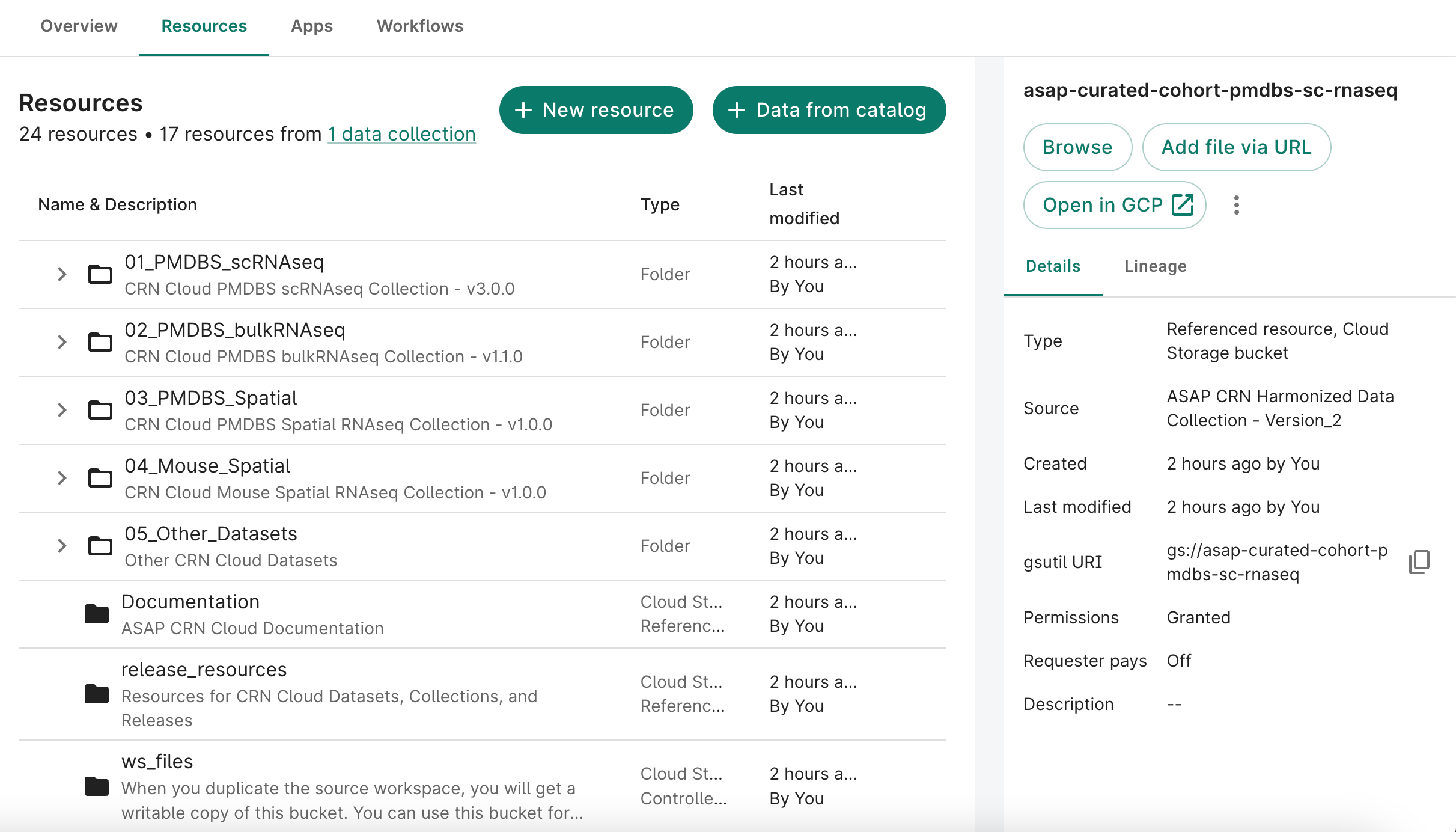
Exploring and Navigating Resources
- From the top navigation bar, click Resources.
- Click Browse to open the folder tree and explore available datasets, curated tables, and metadata files.
- Select any file to open its details panel, where you can view size, modification date, and storage location.
Previewing and Downloading Files
Once you locate a file of interest, you can view or download it without leaving the Resources tab.
In the details panel, choose one of the following actions:
- Preview — opens a quick viewer for text, CSV, or JSON files.
- Download — click the ⋮ (three dots) menu next to the file name and select Download to save it locally.
Tip
To open the file in Google Cloud Platform (GCP), click Open in GCP in the upper-right corner above the details panel. This opens the linked Google Cloud Storage bucket in a new browser tab, where you can view the full directory and metadata.
Raw data access
Raw data files, such as FASTQs, are stored separately from curated analysis-ready outputs and may live in Requester Pays buckets. Accessing these files requires linking your own Google Cloud Billing Account or billing pod to cover applicable data access and egress costs.
For step-by-step instructions, see the Accessing Raw Files in Verily Workbench Guide.